
Settings UI
Admins configure the bridge from an in-game panel. Changes apply live — no resource restart for module picks.
Open with /lumixbridge or /lbridge.
TIP
Screenshots below are from the settings UI (browser preview). You can replace the PNGs in public/products/bridge/ with in-game captures anytime — paths stay the same.
Modules
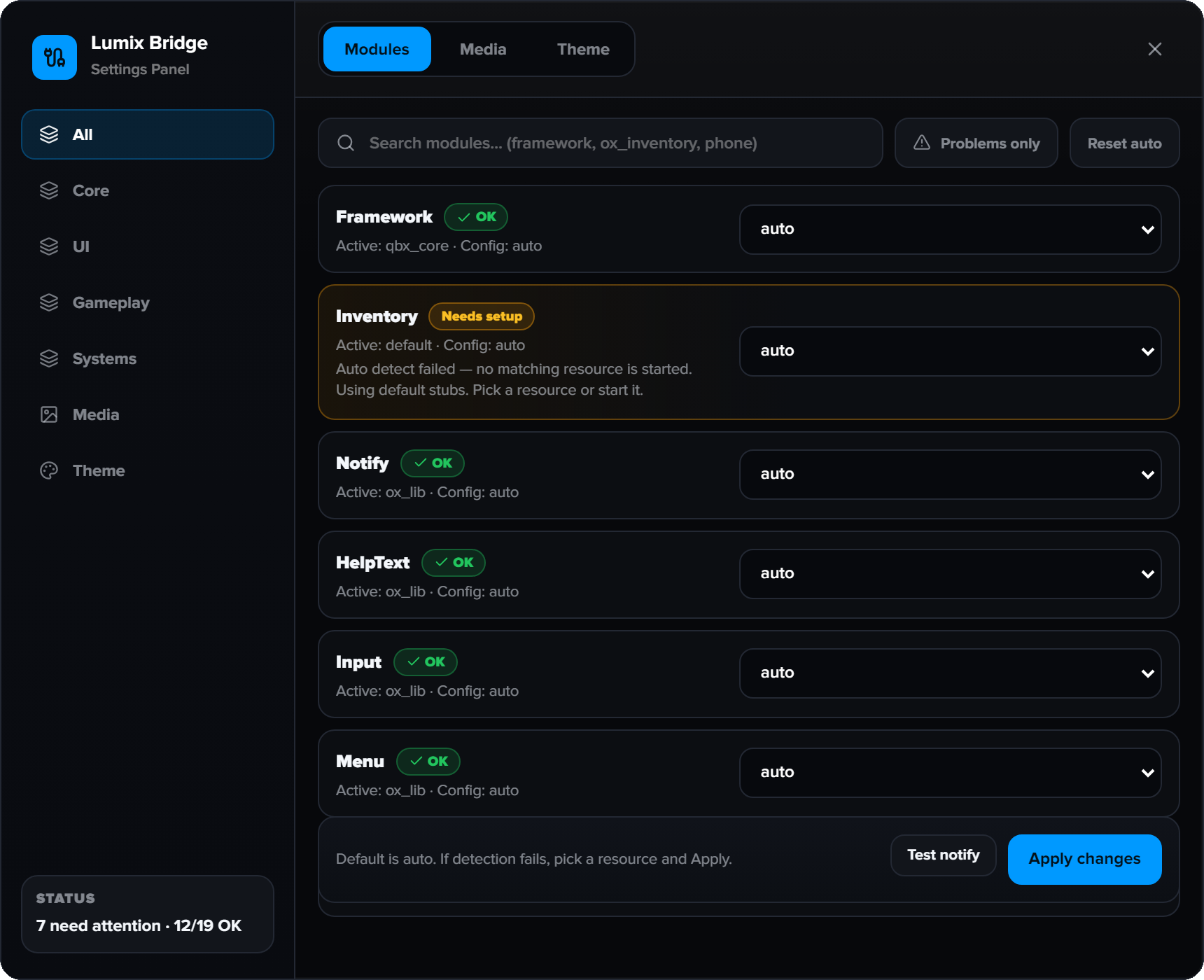
This is the main tab. Each row is a module (Framework, Inventory, Notify, Target, …).
| Control | Meaning |
|---|---|
| auto | Detect whichever matching resource is started |
| Resource name | Force that provider (e.g. ox_inventory) |
| Green / OK badge | Bound correctly |
| Amber / Needs setup | Auto failed or forced resource is not running |
| Apply changes | Save + hot-reload on server and clients |
What you should pick
- Leave most rows on auto if your stack is already started.
- If a row shows Needs setup, open the dropdown and pick the resource you actually use.
- Click Apply changes.
TIP
Filter by group (Core, UI, Gameplay, Systems) in the left sidebar, or use search / “Problems only”.
Theme
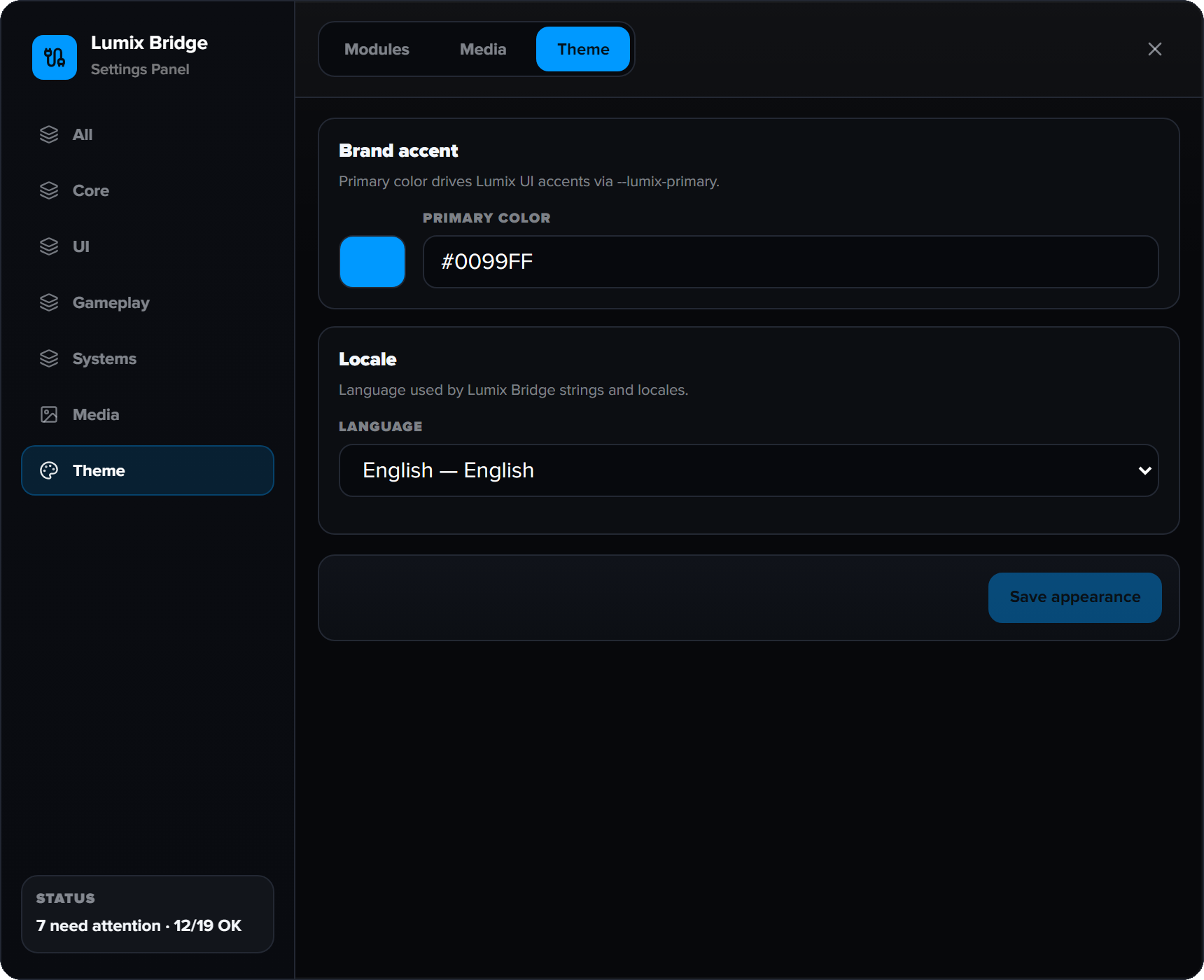
| Setting | Effect |
|---|---|
| Primary color | Brand accent for Lumix UIs (--lumix-primary) |
| Locale | Language for bridge strings (and other Lumix scripts that follow bridge appearance) |
Save with Apply on this tab. Other Lumix resources (e.g. coinshop) read these values from the bridge.
Media
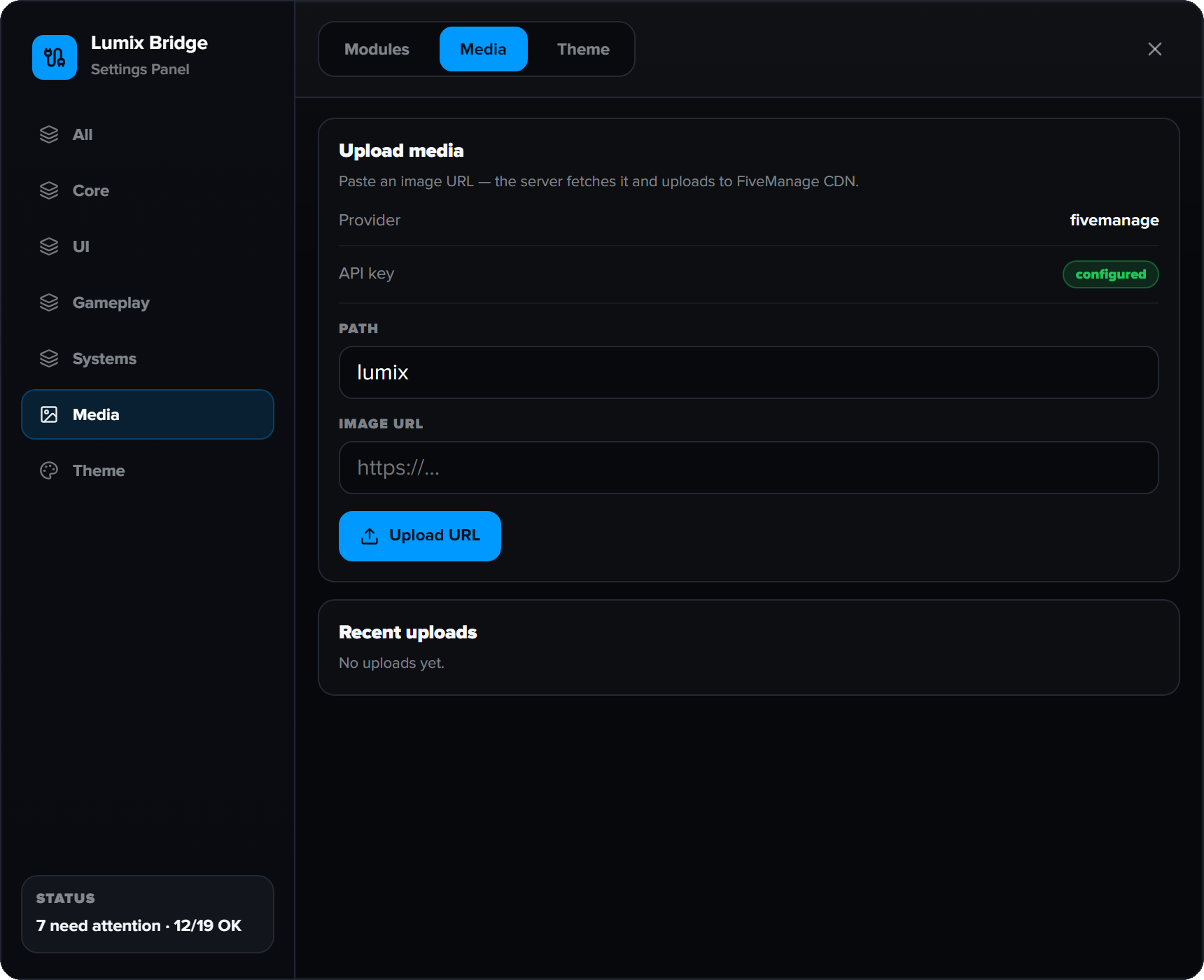
Upload images to your CDN (FiveManage) for use in other Lumix scripts.
- Requires
set lumix_bridge:fivemanage_key "..."inserver.cfg - Default folder path comes from config / this tab
- Recent uploads are listed for quick copy
Prefer UI or config files?
| When | Use |
|---|---|
| Server is online | Settings UI (/lbridge) |
| First install / offline edit | config/*.lua |
UI values are stored in data/settings.json and merge over file defaults on start.